For your crew · For your crew
Photos on a timesheet line
Adding photos to the hours they belong to, the six-per-line limit, and why a photo on an unsaved line is not stored yet.
A photo goes on a timesheet line, beside the hours it belongs to — the state of a slab before you poured it, the damage you found, the meter reading nobody will remember in three weeks. It stays with that line all the way to the office.
Adding one
Press Add photo under the line. Two choices open: Take photo opens the camera, and Choose photo picks one you have already taken.
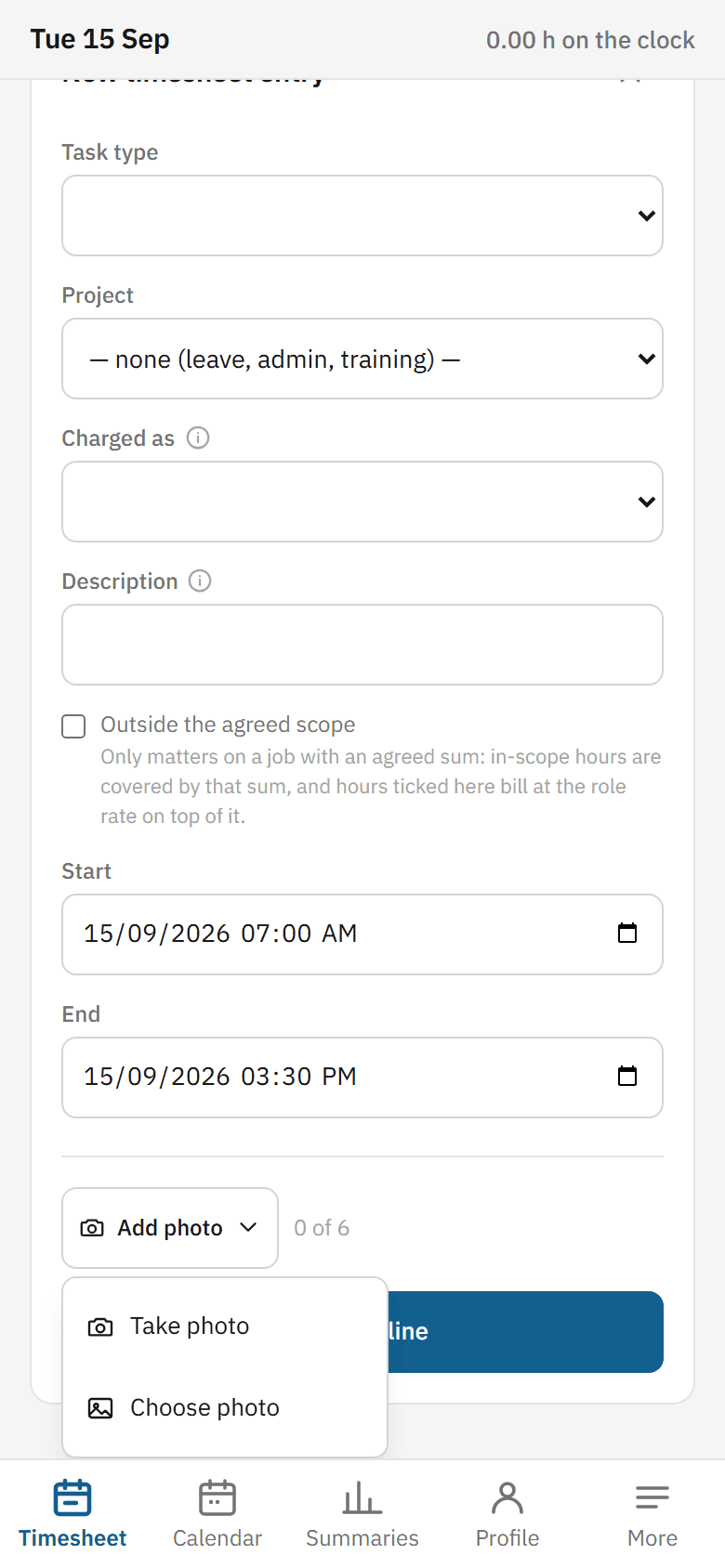
A line carries six photos at most, and the counter beside the button counts them off against that six. Big images take a moment to shrink before they are stored, and the button reads Preparing… while that happens. Wait for it rather than pressing again.
Photos on a line you have not saved yet
Photos you take while filling in New line are held with the form, not stored on their own. They are kept when you save the line — but if you cancel the form, they go with it.
A photo on an unsaved form looks exactly like one on a saved line, and it is not the same thing. If you have taken a photo you would hate to take again, save the line first and add anything else afterwards.
When there is no camera button
The camera is offered per task type, and an administrator decides which ones get it — usually everything except travel and breaks. If Add photo is not there, the task type you picked does not take photos.
Change the task type on a line you are still filling in and the button may disappear mid-way. Anything you had already taken stays and is still saved with the line.
Removing one
Under each thumbnail there is a small bin button — that removes that photo. It is the only control under the picture, and it carries no wording at any screen size.
Two things nearby are easy to confuse with it. The line's own Remove takes off the whole entry, and it asks you to confirm; the photo's bin does not ask, so check which one you have before you press it. And a photo the office has refused carries a ✕ beside it — that one is Dismiss, which clears the refusal rather than the photo.
What you see with no signal
Thumbnails are on your phone and work anywhere. A photo waiting to go to the office is marked Not sent.
Opening a photo full size is different. One still on your phone opens straight away; one already sent to the office has to be fetched, so with no signal you get the thumbnail and a note saying the full-size photo opens once this phone has signal. Nothing is lost — it is waiting for a connection.
Your phone will hold sixty unsent photos, and that is sixty for the whole phone rather than sixty per line. It counts everyone who has signed in on it too, so on a phone the crew shares, somebody else's unsent photos use up the same sixty. If you are working off-grid for days, that is the number to watch: get to signal before you reach it. See working with no signal.
When the phone will not take the photo
Some refusals happen on the spot, before anything is sent, and the phone says which:
| What it says | What it means |
|---|---|
| Six photos is the most one line can carry | Remove one from that line to add another. |
| This phone is holding 60 photos the office has not received yet | Get some signal so they can send, then add more. |
| This line has been sent, so its photos can no longer change | Ask the office. |
| This line is being removed, so it cannot take photos | The line is on its way out; nothing to do. |
| This line is no longer on this phone | The line has gone, so there was nothing to attach to. |
These are different from a photo the office refuses after it has been sent — those arrive later and are listed in when the office refuses an entry.
Once a line is sent
A sent line is finished. You cannot add a photo to it and you cannot take one off it — the same rule as the hours themselves. Ask the office if something needs to change.
Still stuck? Email hello@hourseasy.com. All help articles