Guide · Checked 11 November 2026
How to split Xero Payroll timesheets by project
In Xero Payroll AU, each timesheet line can carry one tracking option, so projects with their own option get their own lines. How to switch it on, what the lines look like, and how HoursEasy fills them, as drafts, from your crew’s phones.
Written by HoursEasy, which makes the app in the second half of this guide. The Xero steps follow Xero's own help pages, checked on 11 November 2026. The HoursEasy steps were run against Xero's Demo Company (AU) on 11 November 2026.
The short answer
In Xero Payroll AU, each timesheet line holds one earnings rate and, once you switch it on, one tracking option. To split someone's hours by project, make a tracking category with an option for each project, choose that category under Payroll settings, Payroll Tracking, Timesheet Categories, then put each project's hours on a line with its own option. Xero puts it this way: you can "allocate time worked against different tracking options for each earnings rate entered" (Xero Central). Someone who worked two jobs at Ordinary Hours gets two lines, one per job. Two projects that share an option share a line, so give each project you want split out its own option.
In Xero's Demo Company, Timesheet Categories started as None, and timesheet lines had no tracking field until it was set.
Set it up in Xero
- Make a tracking category for your jobs, with an option for each project or site: in the Accounting menu, Accounting settings, then Tracking categories (Xero Central). Xero allows two active tracking categories and recommends "no more than 100 tracking options for each tracking category".
- Choose it for timesheets: in the Payroll menu, Payroll settings, then on the Organisation tab under Payroll Tracking, choose the category for Timesheet Categories and click Save. Xero says you "must be a payroll admin to do this", and if you also use Employee Groups, "the tracking category you assign to each must be different".
- Give each project its own line. On each timesheet, add a line for every earnings rate and project option the person worked, and put the hours on the days they worked them.
What the lines look like
One worker's fortnight from the Demo Company, as Xero holds it: two weekly blocks, a line per earnings rate and tracking option. The Demo Company's tracking category is called Region; yours can be called anything.
| Earnings rate | Region | Sun 18 – Sat 24 Oct | Sun 25 – Sat 31 Oct | Hours |
|---|---|---|---|---|
| Ordinary Hours | North | 42.5 | 17 | 59.5 |
| Ordinary Hours | South | 0 | 25.5 | 25.5 |
| Pay period total | 85 | |||
Where the hours come from
Xero needs each person's hours per day, per earnings rate and per project. If your crew fill in paper dockets or a spreadsheet, someone in the office totals those and keys in each line. That works for a few people, and it is the part that grows with the crew.
If you use Xero Projects, Xero documents a way to "add project time into payroll timesheets": from a timesheet, Options, then Add project time entries. Its conditions, in Xero's words: "Employees need to use the web version of Xero Me to add project time entries to their timesheet", "You can only add project time from Total hours worked timesheets", and "It's not currently possible to add a project time entry to a timesheet from within the Xero Me mobile app" (Xero Central).
How HoursEasy fills the lines
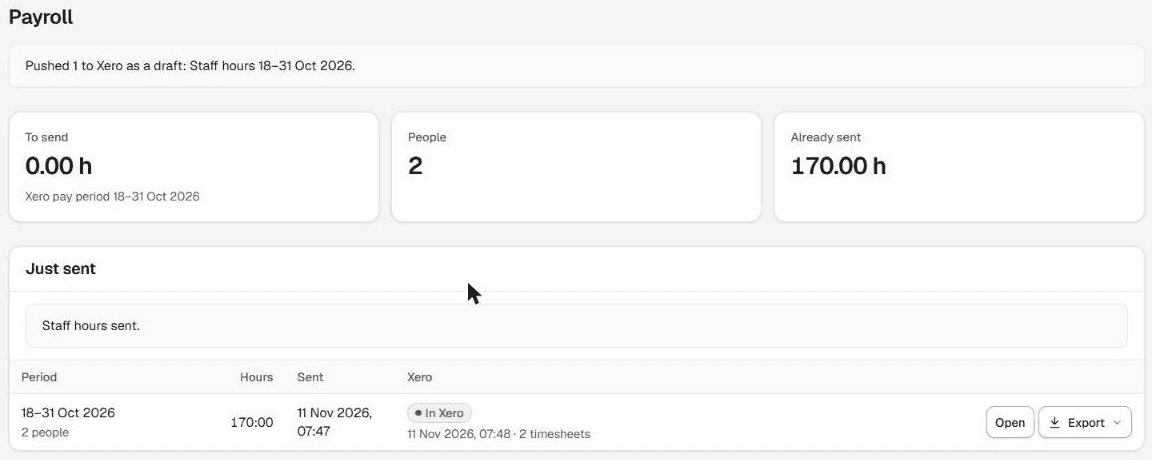
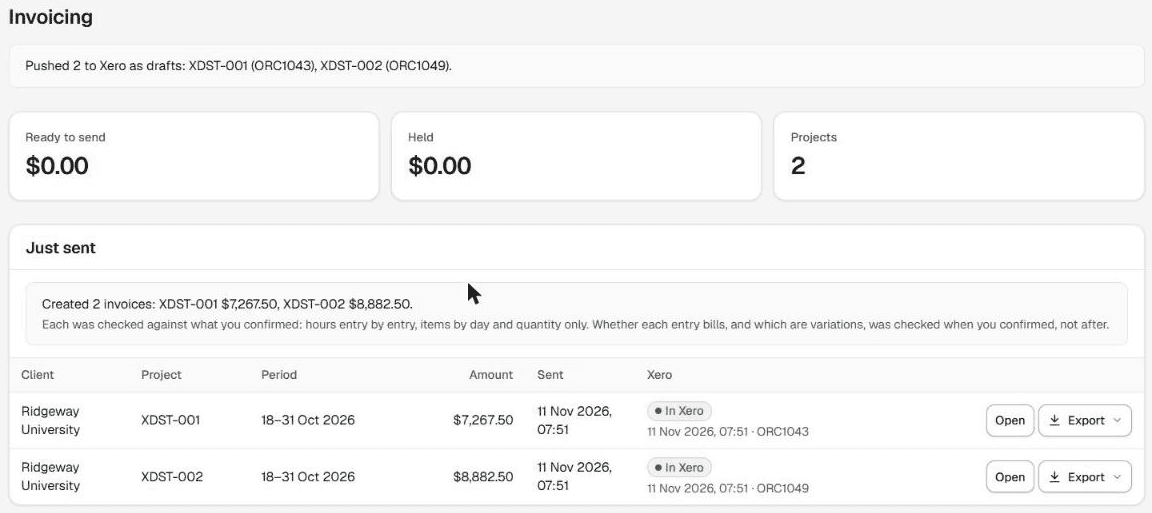
Your crew record hours by job on their phone. When an admin approves the pay period in HoursEasy and pushes it, Xero gets one draft timesheet per person: a line per earnings rate and project tracking option, hours per day. The same approved hours give one draft invoice per project, addressed to that project's client (how HoursEasy works with Xero).
What we checked
On 11 November 2026 we pushed a fortnight, 18 to 31 October, for two people on two projects into Xero's Demo Company (AU).
- Payroll: two draft timesheets, 85 hours each, split into Ordinary Hours lines for North and South, as in the table above.
- Invoices: two draft invoices to the projects' client, dated the last day of the period, with GST added on top, the project's tracking option on the line and the works summary attached as a PDF. HoursEasy sets no due date and reminds you to set one in Xero before approving. (The PDF is attached when attachments were allowed while connecting Xero.)
| Draft invoice | Line | Hours × rate | Ex GST | GST |
|---|---|---|---|---|
| Library extension (North) | Labour, field worker | 76.5 × $95.00 | $7,267.50 | $726.75 |
| Car park resurfacing (South) | Labour, field worker | 93.5 × $95.00 | $8,882.50 | $888.25 |
Setting HoursEasy up for it
On HoursEasy's Xero screen, an admin maps each person to their Xero employee, each role to an earnings rate, each client to a Xero contact, and chooses the tracking category and each project's option. Choose the same category you set under Timesheet Categories, and a different option for each project you want on its own line.
What HoursEasy won’t do
- Timesheets go to Xero Payroll AU only, not New Zealand or UK payroll. Draft invoices need only Xero accounting.
- Pay periods come from weekly and fortnightly Xero pay calendars.
- Everything arrives as drafts. HoursEasy never approves, posts or pays anything in Xero.
- It will not overwrite a timesheet Xero already holds with hours on it for that person and period, draft or processed. It stops and says so. Only an empty draft timesheet is filled.
- A project's line comes from its tracking option. Projects that share an option share a line, so a project needs its own option to be split out.
- It does not check Timesheet Categories for you. Set it in Xero to the category you chose in HoursEasy.
- No award interpretation, PAYG, super or STP; those stay with your payroll.
Common questions
Can you split a Xero Payroll timesheet by project?
Yes, in Xero Payroll AU. Make a tracking category with an option for each project, choose it under Payroll settings, Payroll Tracking, Timesheet Categories, then put each project’s hours on a line with its own option. A line holds one earnings rate and one option.
Why is there no tracking field on my Xero timesheet?
Check Timesheet Categories, under Payroll settings, Payroll Tracking. In Xero’s Demo Company it started as None, and timesheet lines had no tracking field until it was set to the tracking category the projects use.
Will HoursEasy overwrite a timesheet already in Xero?
No. If Xero already holds a timesheet with hours on it for that person and pay period, draft or processed, HoursEasy will not overwrite it and says so. Only an empty draft timesheet is filled.
Does it work with Xero Payroll in New Zealand or the UK?
No. HoursEasy sends draft timesheets to Xero Payroll AU only, for weekly and fortnightly pay calendars. Draft invoices need only Xero accounting, so they work without Xero Payroll.
Comparing other ways to get crew hours into Xero? See eight timesheet apps for Xero compared.