For your staff · For your crew
Recording your day
Adding a line to your timesheet on a phone — what each field means, and why sent lines cannot change.
This is your timesheet: the day at the top, your hours below it, and one button to add another line.
The video walks through a whole day, from the first line to the docket and the sync.
Finding the right day
Tap the day heading — it reads Today, Yesterday or a date — to open the day picker, then use ‹ › to move a day at a time.
Adding a line
On a phone, tap the round + button. It opens New timesheet entry.
- Choose a Project — it is required, so pick one, or No project (admin, training, yard) for time that is not on a job.
- Choose a Task type.
- Set Start and End.
- Add a Description if it is useful — the client sees this on their works summary.
- Open Billing details if you need it. Charged as is what the client is charged for these hours, and defaults to your usual role. Tick Outside the agreed scope only on a job with an agreed sum, for hours that go on top of it rather than being covered by it.
- Press Add line.
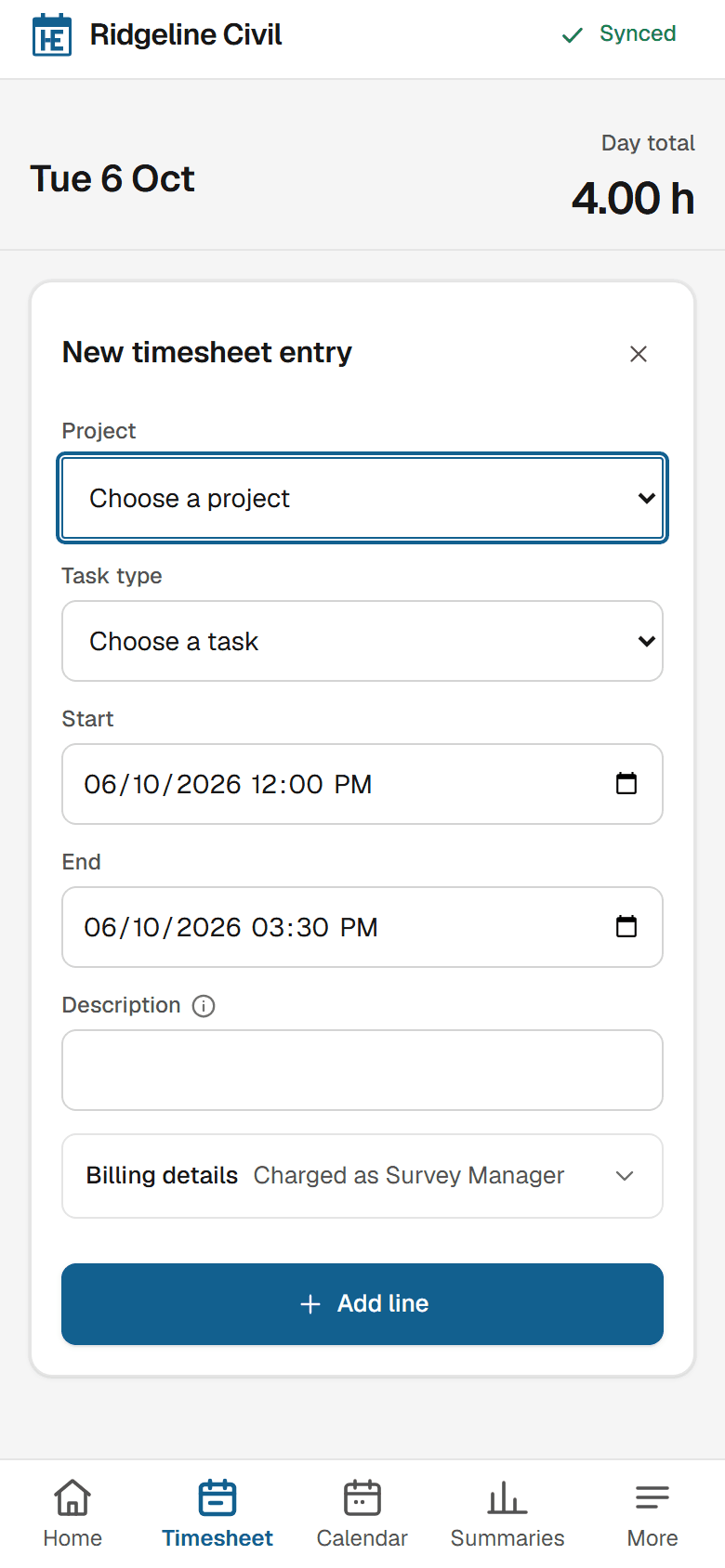
The next line starts where the last one finished, so you are not retyping the time. On a day with no lines yet, the form opens already filled in from the first line of the last day you worked — its project, task type, role and times — so change only what is different. Hours that overlap an entry you have already recorded are refused — change the times and try again.
If the task type takes photos, you can add them on the form or, once the line is saved, with its camera button — see photos on a timesheet line.
Copying a day
When a day has no lines yet, a button offers to repeat the last day you worked, named for that day and counting its lines: "Copy Fri 9 Oct (3 lines)". One tap copies every line of that day onto this one, so a week of the same job is not typed out five times.
Descriptions, items used and photos are not copied; add them to the new lines if you need them. The copy is refused, with a sentence saying why, if the day already has hours, if the day you are copying changed since the button appeared, or if a daylight-saving change means one of the copied times does not exist or happens twice. Anything it copies is an ordinary line: change or remove it like any other.
Recording an unpaid break
An unpaid break is recorded like any other line. Add a line, choose a task type whose Kind is Unpaid — Lunch, for most businesses — and set its Start and End.
The day total then shows your paid hours, with the break underneath: "8.00 h" and, below it, "0.50 h break". Unpaid hours are left out of payroll, the payroll export, Xero timesheets, the hours totals on Summaries, Home and the calendar, and dockets. If Lunch shows up as paid, your office has not switched it yet; see roles and task types for where the Kind is set.
Changing, copying or removing a line
Every line you have not sent yet can be changed, copied or taken off.
On a phone, open the line with the caret beside its time, then press the ⋯ button on it — or press and hold the line. A sheet opens with Edit, Copy to a new entry and Remove. Copying starts a new line from this one, so a day of similar work is not typed out five times.
On a wide screen the same three sit on the line as icons with no wording: a pencil to edit, two overlapping sheets to copy, and a bin to remove.
Removing asks twice on purpose: after the first press you confirm with a button naming that line's task and times. Nothing is gone until you press that second one, so a mis-tap costs you nothing.
Once a line shows Sent, it has gone to payroll or invoicing and cannot be changed at all — no editing, no removing, and no new photos. Ask the office to fix it instead.
Still stuck? Email hello@hourseasy.com. All help articles